

Think you're stuck with a single Gutter value in the Data Merge Layout Tool in Affinity Publisher? Think again!
In this tutorial I'll be sharing how to create unequal gutters in a Data Merge Layout using Affinity Publisher. You might be wondering why this would be necessary, so let me start by explaining the problem, and then I’ll walk you through the solution.
What's the Problem?

The Data Merge Layout Tool in Affinity Publisher allows you to create a grid into which your data is flowed according to the settings you choose. Let’s consider a simple scenario:
- A4 sheet
- 10 mm margins
- 18 labels on the sheet
- Labels 60 mm x 42 mm
- Gutter of 5 mm, both vertically and horizontally

This setup works perfectly, as you’ll see:
- Start a new document:
- A4, RGB, single page, with 10 mm margins and no bleed
- Use the Data Merge Layout Tool to draw a grid within the margins
- Set up 3 columns and 6 rows, with a gutter of 5 mm both horizontally and vertically

This is simple enough, but what if you need unequal gutters between your labels?
The Challenge
The main issue with Affinity Publisher’s Data Merge Layout Tool is that it only allows you to set one gutter value and it uses that value for both the horizontal and the vertical gutters.
This limitation creates a challenge when dealing with layouts like Avery J4785 (name badge) labels, which have different horizontal and vertical gutters.
Avery J4785 has:
- Margins
- Left: 17.5 mm
- Right: 17.5 mm
- Top: 13 mm
- Bottom: 13 mm
- 10 labels per sheet
- Each Label: 50 mm x 80 mm
- Horizontal Gutter: 5 mm
- Vertical Gutter: 15 mm

The current Data Merge Layout tool doesn’t support different gutter sizes – but there’s a workaround.
The Solution: Step-by-Step
Here’s how to set up a Data Merge Layout with unequal gutters:
Step 1: Set Up the Document

- Create a new A4 document:
- Set Margins
- Left: 17.5mm
- Right: 17.5 mm
- Top: 13 mm
- Bottom: 13 mm
- Go to View > Guides and add the guides needed for the layout:
- You’ll need 8 horizontal guides and 2 vertical guides
- All the guides will initially be placed in the centre - Adjust them to the correct locations by double-clicking each one and enter the precise measurements
Step 2: Add the Data Merge Layout
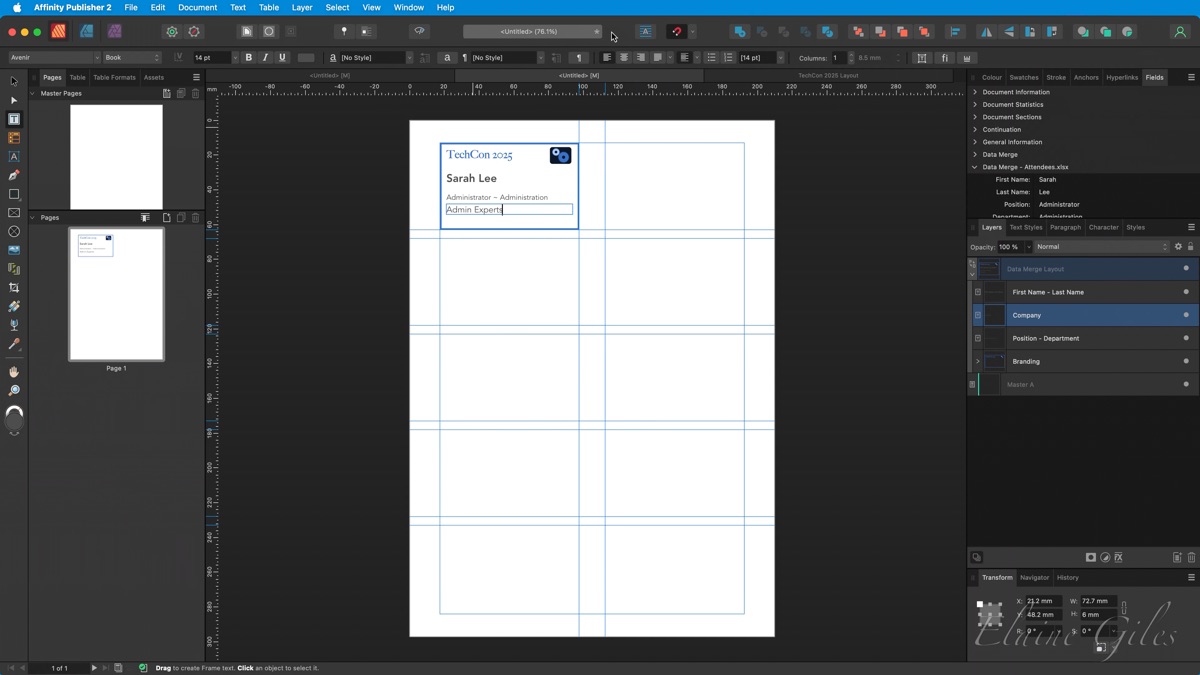
- Select the Data Merge Layout Tool and draw a layout within the first box of your grid
- Set the Data Merge Layout to have 1 column and 1 row
- Copy and paste your pre-configured layout (if you have one), or create the layout from scratch:
- In my case, I used 3 text boxes, an image, and a shape with a border
- Position these elements within the Data Merge Layout using your guides
Step 3: Connect to the Data Source
- Open the Data Merge Manager from Window > Data Merge Manager
- Add your data source (an Excel file in this example)
- Ensure the correct sheet is selected in the Data Merge Manager dialog box
- Replace the placeholder text in your layout with data fields:
- Use the Fields panel to insert the fields
- First Name
- Last Name
- Position
- Department
- Company
Step 4: Duplicate the Data Merge Layout
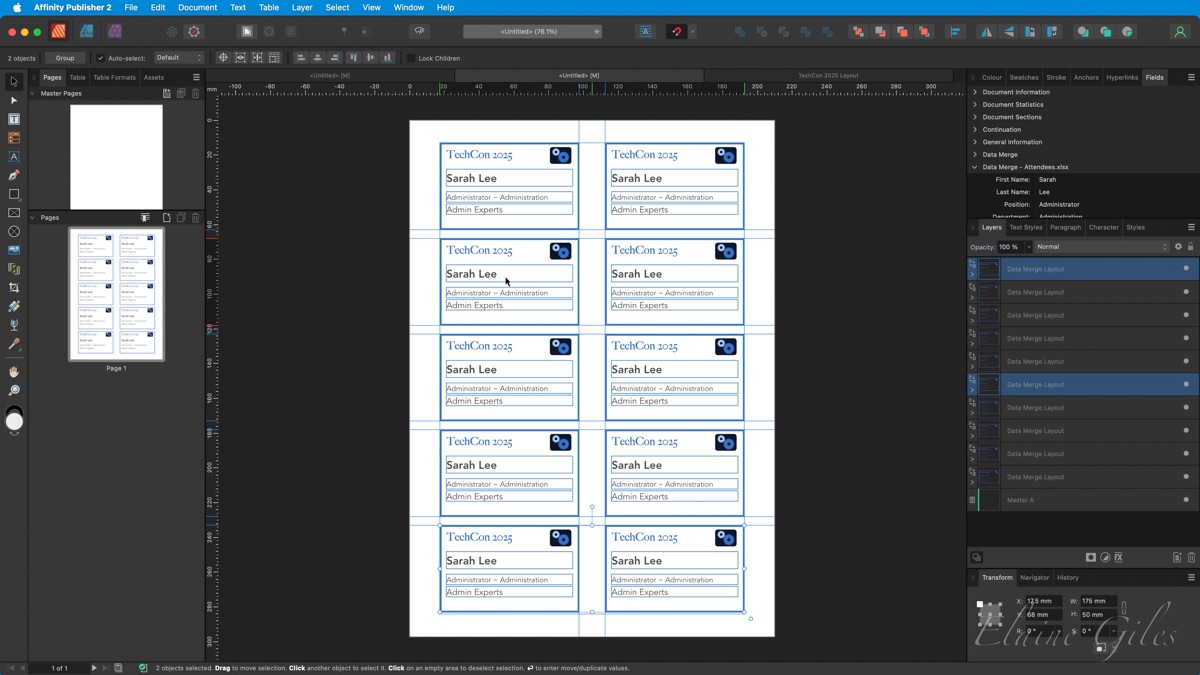
- After you’ve set up your first Data Merge Layout, copy it and paste it into the spaces marked out by the guides
- Use the guides to position each layout correctly
- You can make copies by holding the Option key (Mac) or Alt key (Windows) to drag and duplicate the layout
- Once you have 2 Data Merge Layouts you can use Command + J (Mac) or Ctrl + J (Windows) to Power Duplicate both for the remaining
Now, you have multiple Data Merge Layouts in place. While each one shows the same record during setup, Affinity Publisher will automatically iterate through your data source when the merge is run.
Step 5: Run the Data Merge

- Open the Data Merge Manager and untick Preview with record
- Click Generate to complete the merge
You’ll now have a document with the correct data in each label, all with the unequal gutters set as needed

Final Thoughts
The Data Merge Layout tool in Affinity Publisher may not directly support unequal gutter measurements, but using this workaround, you can easily set up layouts with different horizontal and vertical spacing. It’s a quick and efficient solution, even though you may need to delete and recreate some layouts if changes are required after the merge.
And there you have it! A way to force Affinity Publisher to do what you want! If you enjoyed this tutorial and want more tips and tricks, be sure to check out my free training at ElaineGiles.com/VIP. Don’t forget to subscribe and hit the notification bell so you never miss a new tutorial.
If you have any specific tutorial requests, feel free to reach out - I’d love to hear from you! Thanks for joining me, and I’ll see you next time.
Thanks for reading and watching, and see you next time!
