

This tutorial will help you build a seven-day vertical planner, with space for notes, a mini calendar, and a flexible layout that we’ll use in the next video for a data merge to include dates for October.
Let’s get started!
Step 1: Setting Up the Document

We’re starting from scratch, so follow these steps to set up the basic layout:
- Create a new file by going to File > New. For this layout, I’m using the A4 size.
- Adjust the number of pages to 2. We’re working with a double spread layout, starting on the left page.
- Set the colour mode to RGB as this is for digital output.
- Next, adjust your margins:
- Inner margin: 15mm
- Outer margin: 5mm
- Top margin: 20mm
- Bottom margin: 5mm
- For the Bleed, set it to 0 since this is a digital layout.
Now, let’s move on to the actual layout.
Step 2: Setting Up Guides
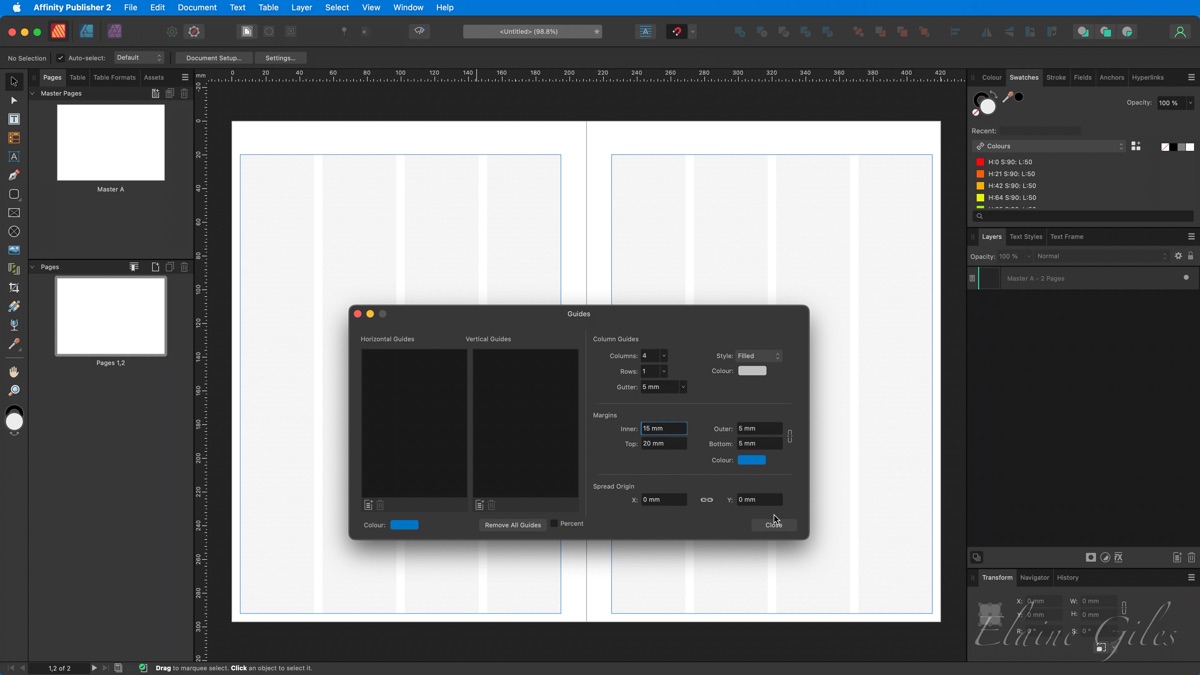
To organise our content, we’ll use guides:
- Go to View > Guides and set the layout to have four columns.
- Adjust the Gutter between the columns to 5mm, as the default 8.5mm is too wide.
Step 3: Creating a Single Day Layout

Now we’ll create the layout for a single day using a table.
- Insert a table within one of the columns. The table will have one column and seven rows.
- Adjust the height of each row without changing the overall height of the table:
- Row 1: 5mm
- Row 2: 73mm
- Row 3: 5mm
- Row 4: 73mm
- Row 5: 5mm
- Row 6: 73mm
- Row 7: Footer space
Step 4: Adding Colour
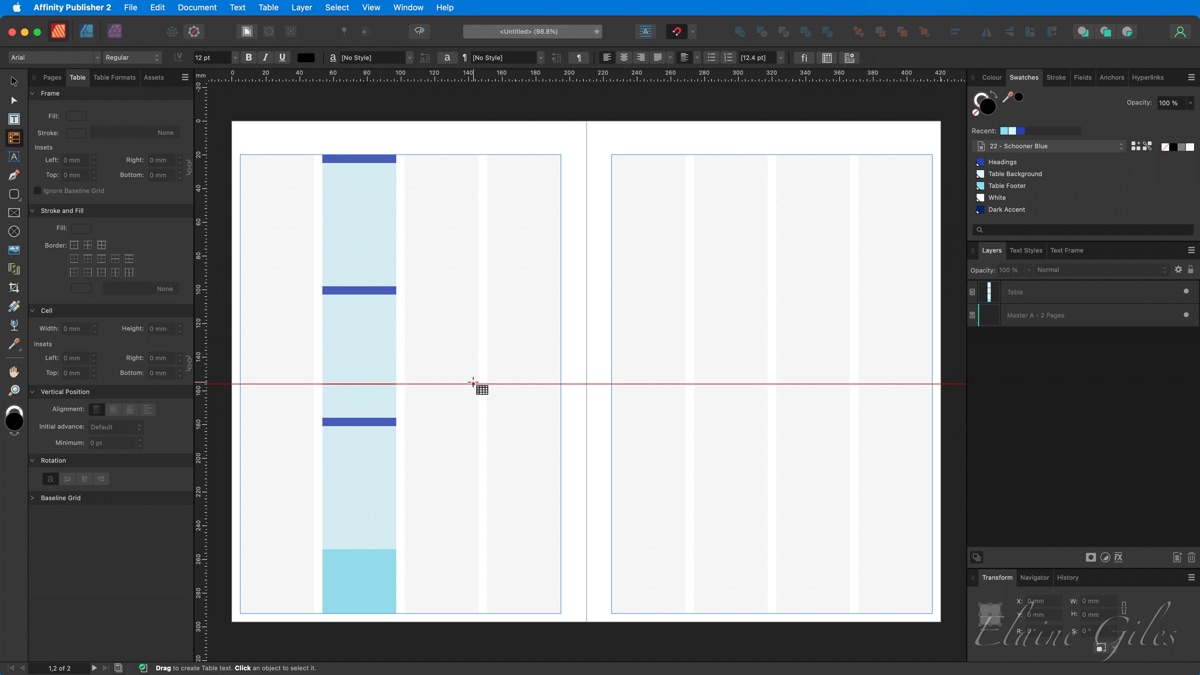
Now, we’ll make it visually appealing by adding colours to the table:
- Import a Colour Palette by going to the burger menu, and selecting Import Palette. I’m using a palette called Schooner Blue.
- Apply colours to the table:
- Headings (5mm rows): Fill with the Headings colour.
- Background (larger rows): Use the Background colour for rows 2, 4, and 6.
- Footer (row 7): Apply the Footer colour for this.
Step 5: Formatting the Table

- Remove the table borders by selecting all cells and turning off the border.
- To add rounded corners, create a Shape that matches the size of the table and round its corners.
- Place the table inside the rounded rectangle for a polished look.
- Finally, apply a stroke to the shape to create a subtle outline (I used 0.5 stroke width).
Step 6: Duplicating the Layout for 7 Days
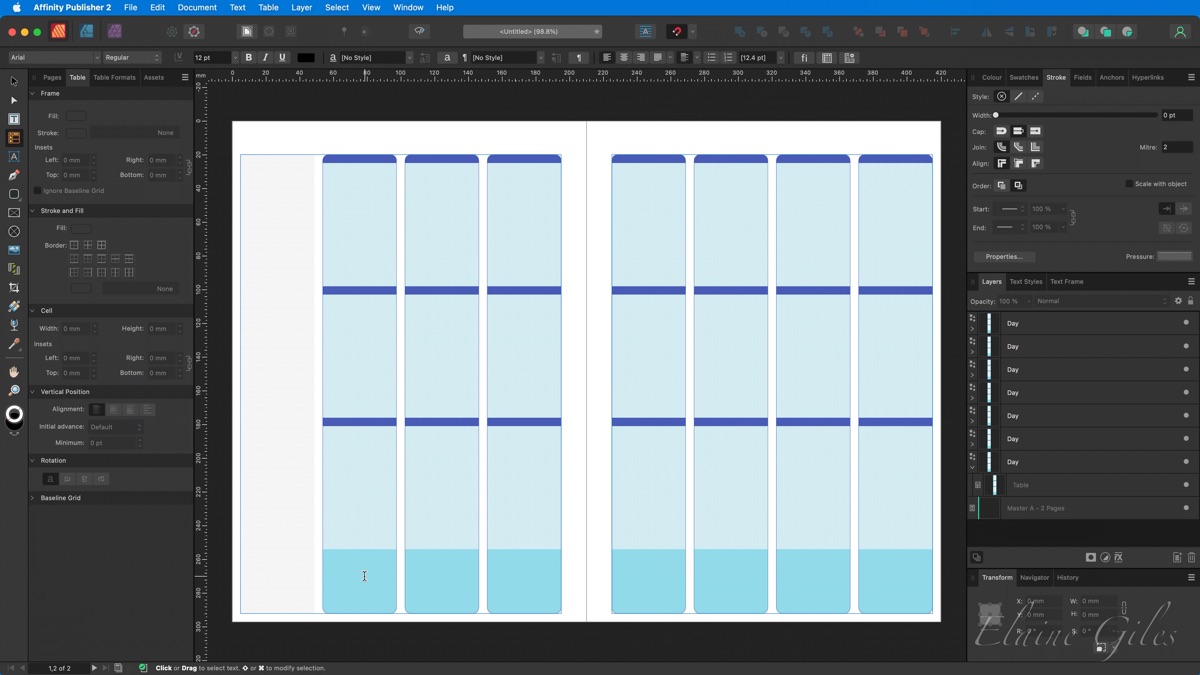
We’ll now duplicate the single day layout to create a seven-day spread.
- Use Command + J (power duplicate) to duplicate the table.
- Move the duplicates into position. Repeat this process until you have seven days.
- While this is one way to achieve the extra 6 days it isn’t the best way!
Step 7: Using Symbols for Flexibility
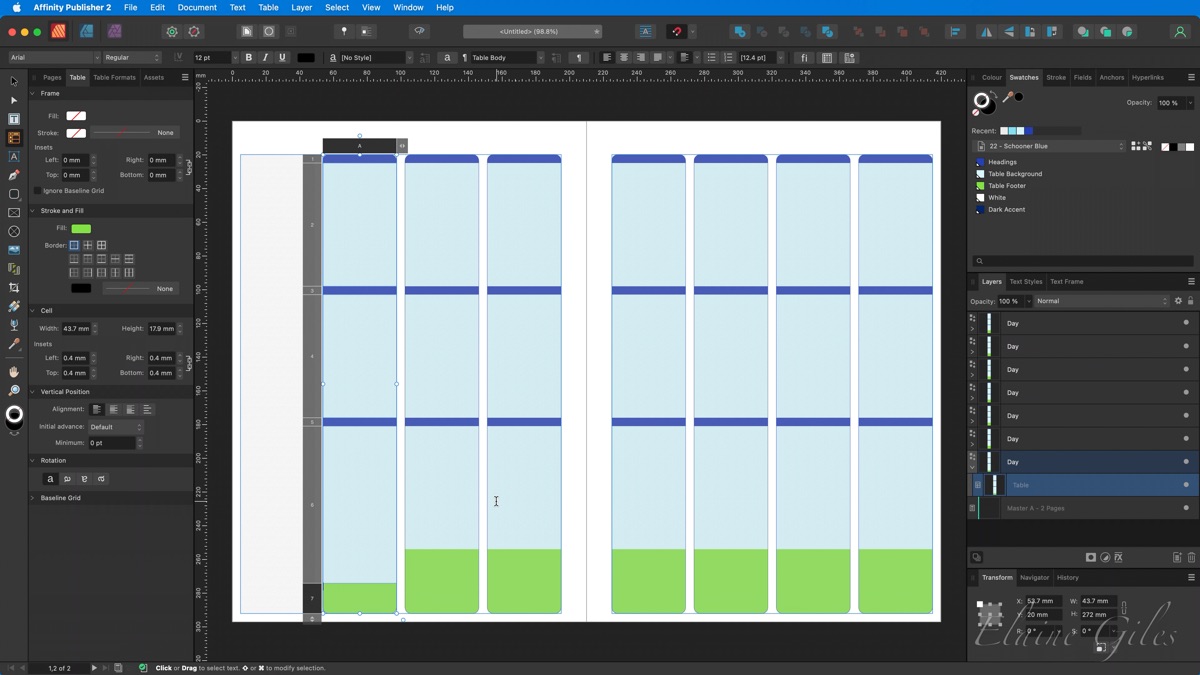
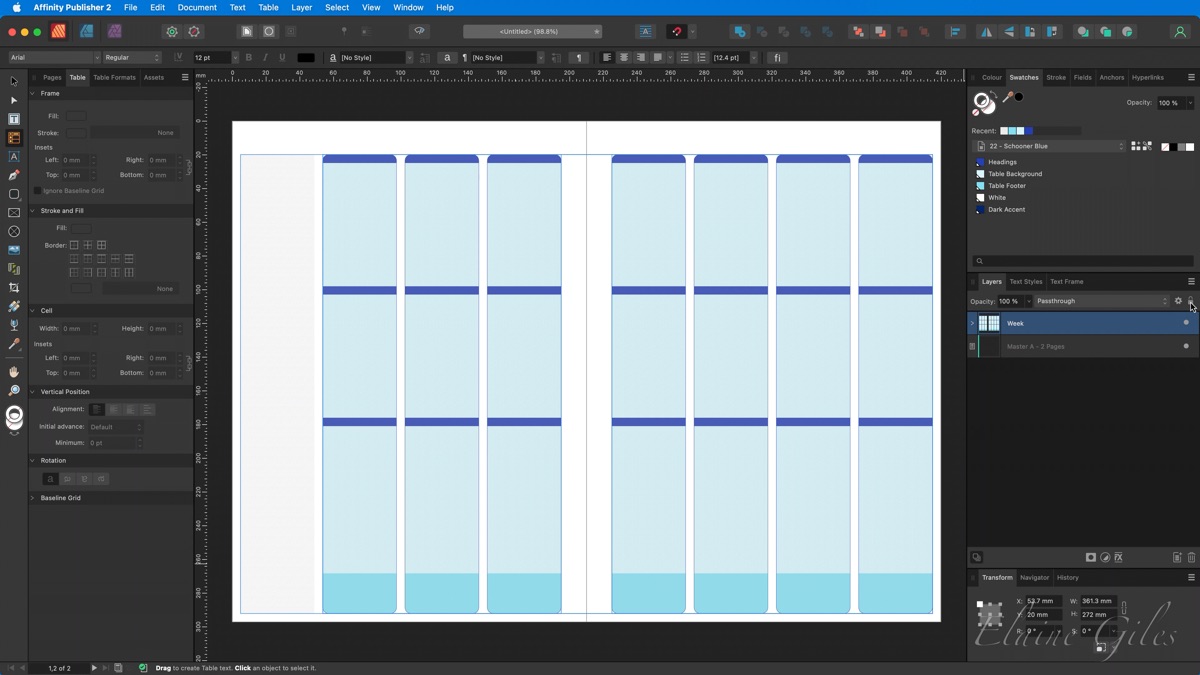
If you want more flexibility, convert the day layout into a Symbol. This way, any changes you make to one symbol will automatically apply to the others.
- Switch to the Designer Persona using the toolbar at the top of the screen.
- With the day selected, open the Symbols Panel (Window > Symbols) and click Create.
- Now, switch back to the Publisher Persona and duplicate the Symbol to fill the layout.
Step 8: Adding the Heading

Now that the layout is complete, let’s add a heading.
- Select the Frame Text Tool and create a text box above the first column on the left.
- Enter the text “October 2024” and choose a decorative font like October Twilight.
- Adjust the size and centre-align the text.
Step 9: Creating a Mini Calendar

To make our planner even more useful, we’ll add a mini calendar.
- I’m using a pre-built Calendar Creation Kit element, where I’ve already set up tables for each week.
- Since October starts on a Tuesday, drag the Tuesday Start table into place.
- Format the calendar:
- Set the font to Avenir, 8 points.
- Change the day headings background to the Headings colour and make the font white and bold.
- Adjust the table borders to match the layout.
Step 10: Adding a Notes Section

Lastly, we’ll add a notes area on the left-hand side:
- Insert another Table with 1 column and 28 rows, placing it underneath the mini calendar.
- Format the table to match the style of the rest of the planner, including border colours and sizes.
