

In this tutorial, I'll show you how to design a magic to-do list in Affinity Publisher. This isn't just your typical checklist - it’s customizable, flexible, and integrates seamlessly with your planner. Let's dive into the step-by-step process.
Step 1: Create a Table
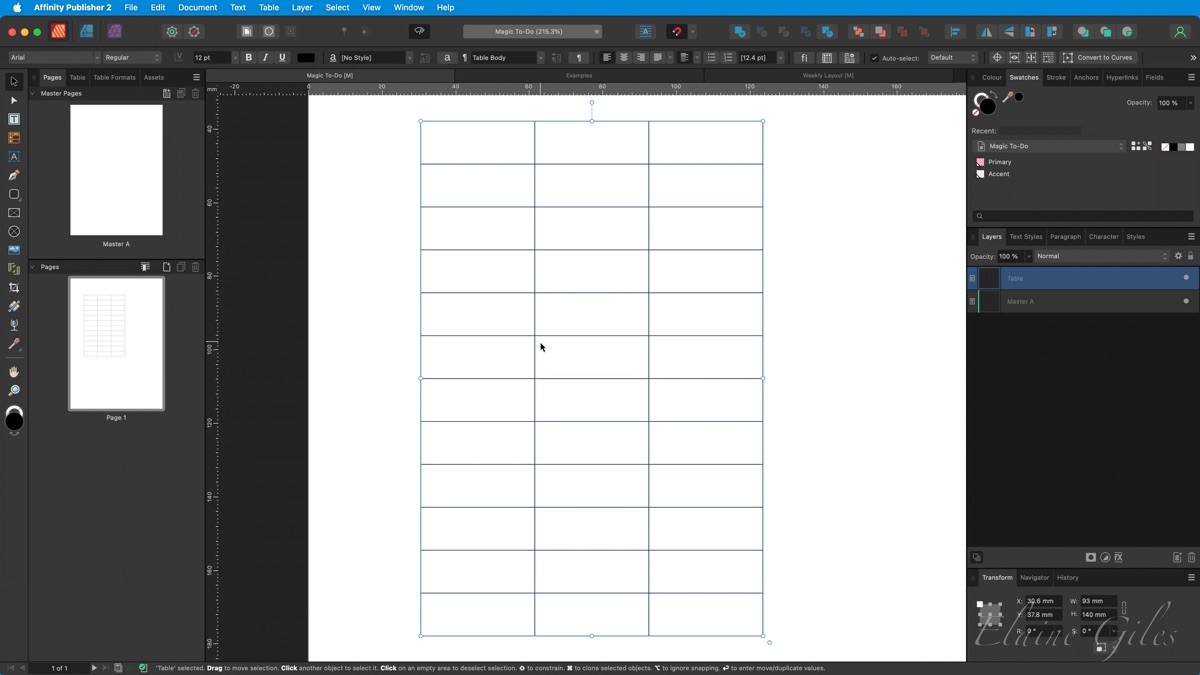
- Start by drawing out a table with three columns and twelve rows
- I had a specific location in mind to use the finished To-Do List so I set the table size to 93 mm wide and 140 mm high using the Transform Panel
- The top row acts as a header and was 17 mm high
- The remaining rows were evenly distributed meaning they were the 11.2 mm each
Step 2: Adjust Column Sizes

- Set column A to be 11.5 mm wide
- Set column B (the middle column) to 70 mm wide
- Set column C to be 11.5 mm wide
Step 3: Add Colour to the Table

- Select the entire table and add a fill colour
- I used a candy-coloured pink (hex code) from my custom Document Palette ensuring it was set as a Global Colour
- Before applying the custom border formatting remove all the default borders
- Add Inside Horizontal Borders with a white or accent colour at 0.5 mm thickness
Step 4: Format the Text

- Select the entire Table and centre the text vertically and horizontally within the cells
- Change the font to "Bohemian Typewriter" or a font of your choice and set the size to 18pt with a white colour fill
Step 5: Add Custom Checkboxes

- Draw a 5 mm rounded rectangle to create a circular checkbox for the left column
- Convert the shape into a Symbol using the Designer Persona
- Repeat the process for a square checkbox in the right column again making this a Symbol using the Design Persona
- Paste copies of the Symbols into the appropriate table cells in columns A and C
Step 6: Add a Decorative Paperclip (Optional)
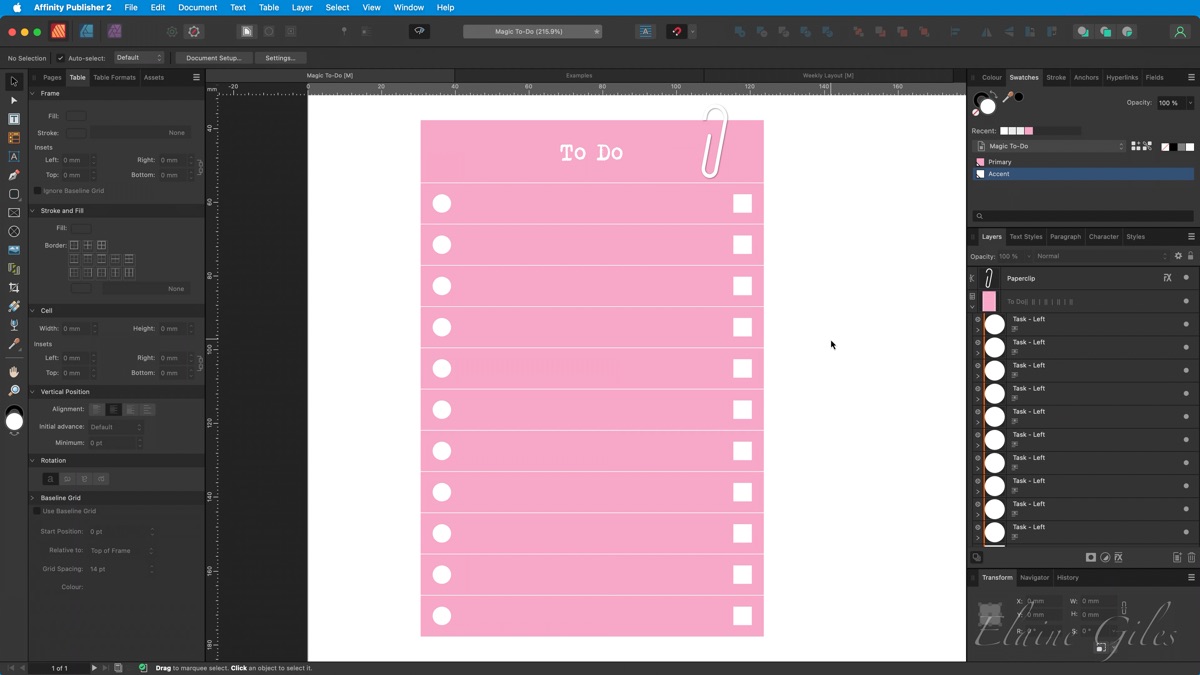
- Import a paperclip shape - see the list of free assets below
- Paste it onto the layout, positioning it slightly off the top right corner
- Add a subtle shadow effect for depth
Step 7: Integrate the To-Do List into a Weekly Layout
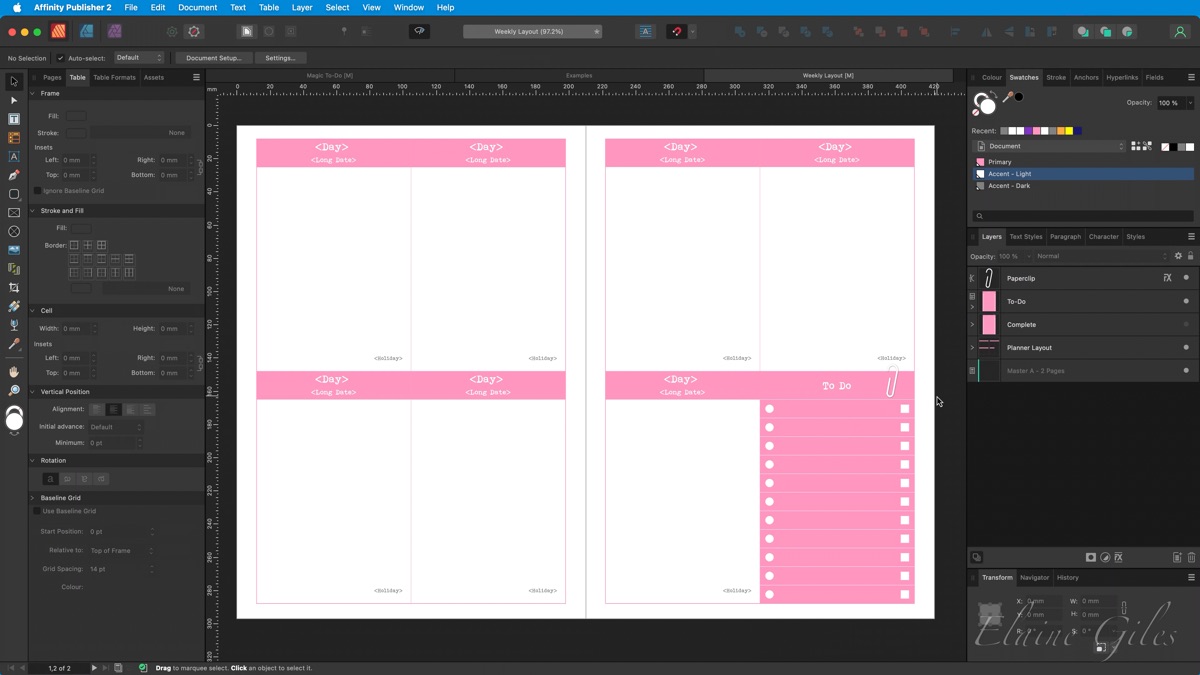
- Copy the entire table and paperclip design
- If you have a layout you can paste it into that layout
Step 8: Customise with Data Merge
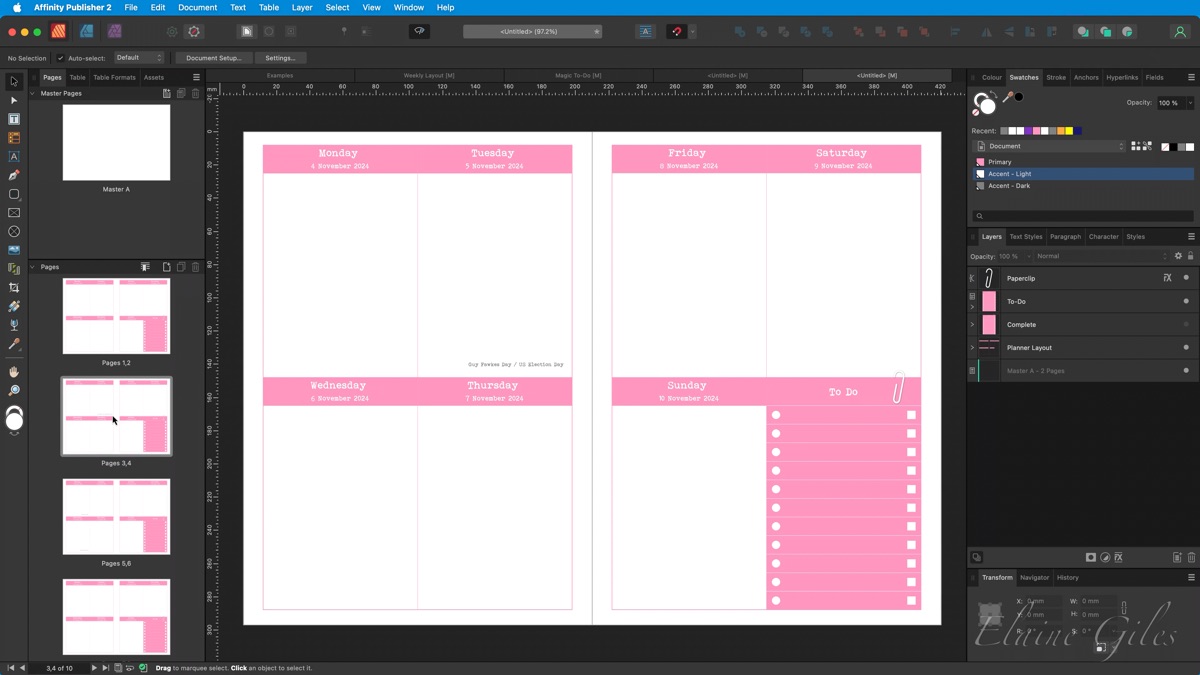
- Hook up your layout to a Data Source, such as a spreadsheet including planner dates, and run the Data Merge
- Check the results to see your To-Do list appear across multiple weekly pages
Summary
And that’s it! This Magic To-Do List is highly versatile and can be adapted for various layouts and projects. The use of Symbols and Global Colours makes customisation easy, and Data Merge adds the finishing touch for easy automation.
Try creating your own version and experiment with different designs!
